Connect your Markleyo AI chatbot to Facebook Messenger, allowing you to reach customers where they're already spending time. It enables your customers to directly chat with your AI bot via your facebook messenger.
This integration allows your chatbot to automatically respond to messages sent through:
Facebook Messenger
Facebook Page inbox
Customers message your Facebook page, and your chatbot responds automatically.
A Facebook Page (not a personal profile)
Admin access to your Facebook Page
Markleyo AI account with active chatbot
Note: It is a DIY method. Each page must have separate apps created in the developer portal.
Go to Facebook for Developers and log in with your Facebook account.
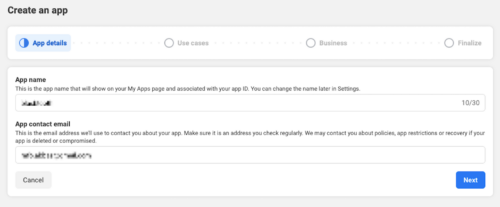
Click My Apps → Create App.
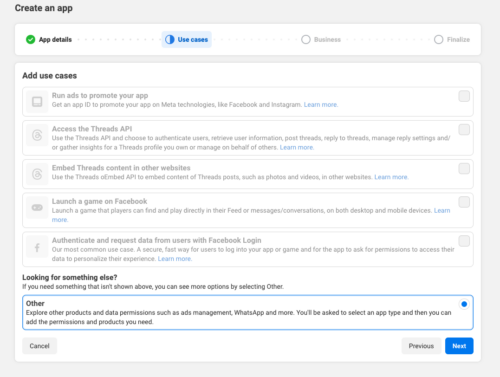
3. Select the use case i.e., "other"
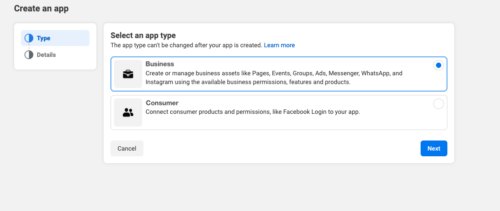
Choose Business as the app type and provide the required details.
Once created, you’ll receive an App ID and App Secret, keep these handy.
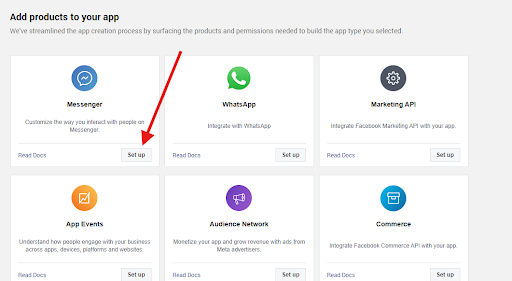
From your app dashboard, navigate to Messenger under Add Products and click Set Up button.
Select the Facebook Page you want to connect to your chatbot.
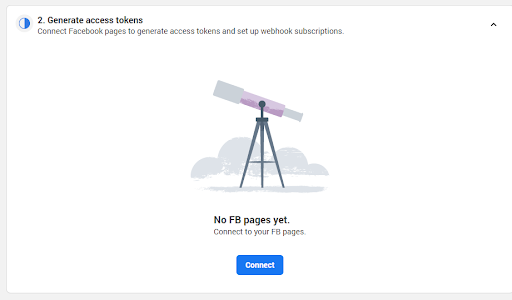
Generate a Page Access Token for that page.
Copy the Page Name and Access Token, you’ll need them in Markleyo AI.
In your app settings in facebook developer portal, go to Messenger → Settings → Webhooks.
Add a Webhook URL (this will be provided by Markleyo AI when you set up Messenger as a channel in your chatbot).
Enter a Verify Token (a secure string you create and later provide in Markleyo AI).
Select the required webhook events (messages, messaging_postbacks, etc.).
Log in to your Markleyo AI dashboard.
Go to AI Bots and edit the chatbot you want to connect.
Navigate to the Channel step.
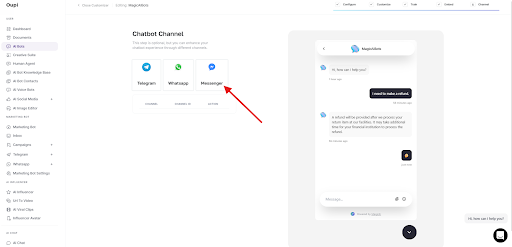
Select Facebook Messenger and fill in the following field.
App ID
App Secret
Page Name
Access Token
Verify Token
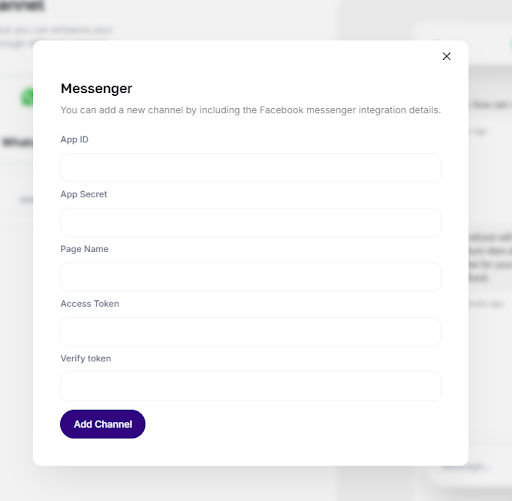
Click Save, your chatbot is now connected to Facebook Messenger!
From the list of channels click on the Details button.
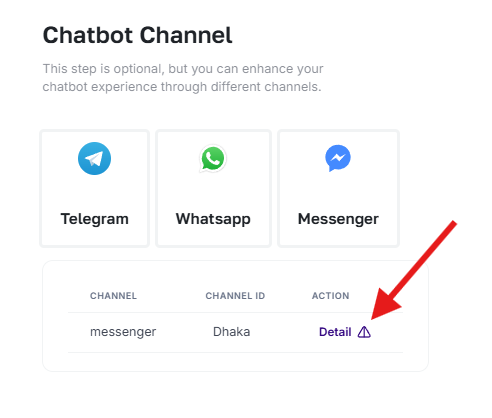
It will show the webhook, copy it and open facebook developer app.
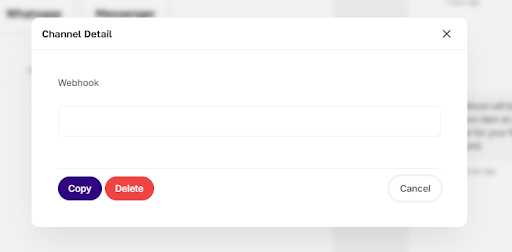
Now put the webhook in the callback URL of the messenger API settings (Step 3 above), verify and save.
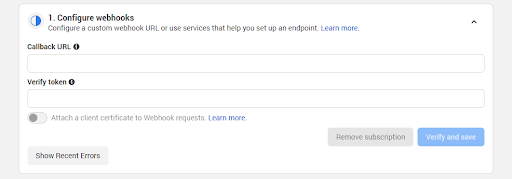
For Customers:
They message your Facebook page as normal
They don't know they're talking to AI initially (unless you want them to know)
Can be seamlessly transferred to human agent if needed
For You:
Monitor conversations in Facebook Messenger or Markleyo CRM Inbox
See unified conversation history
Analyze performance metrics
Handle escalations through Markleyo
1. Welcome Message
Set a helpful welcome message that appears when someone opens Messenger.
2. Quick Replies
Configure quick-reply buttons to guide conversations and improve UX.
3. Segmentation
Use Facebook Pixel to segment customers and customize chatbot responses.
4. Business Hours
Let customers know support hours and set appropriate escalation rules.
5. Personal Touch
Even though it's a bot, make interactions feel helpful and human-like.
6. Regular Updates
Keep your Facebook knowledge base current so chatbot provides accurate information.